

برای مشاهده آموزش فارسی کلیک کنید
Keeping country and service based network lists current can become a repetitive job. Someone has to find an updated data file, import it, select the right entries, and remove old records without disturbing other RouterOS configuration. Mikro GeoIP is a web panel designed to make that workflow easier for MikroTik administrators.
Version 1.4 runs in a RouterOS container, manages GeoIP and GeoSite data files, and sends selected entries to MikroTik Address Lists through the RouterOS REST API. The resulting lists are building blocks for rules an administrator designs. The panel does not change routing or firewall policy on its own.
What is Mikro GeoIP?
Mikro GeoIP is a bilingual management interface for working with GeoIP and GeoSite catalogues on a MikroTik router. Instead of manually maintaining long collections of network entries, an administrator can search a catalogue, choose a country or service category, name an Address List, and add the selected records to RouterOS.
The tool is intended for network administrators who already understand their router’s topology and firewall policy. The Address Lists it creates can then be referenced in firewall or routing rules that the administrator has reviewed and configured.
GeoIP and GeoSite are different data sets
GeoIP data groups IP addresses and CIDR networks by country or service. GeoSite data groups domain rules, which may include hostnames, root domains, keywords, or regular expressions. They solve different problems and are managed as separate files.
GeoSite conversion has an important limit: Mikro GeoIP converts usable domain entries for RouterOS DNS use, but it cannot guarantee full support for every Xray rule type, regular expression, subdomain, or service delivery method. A category for a large service should not be treated as a complete list of every address that service might use.
GeoIP data also does not identify a person’s exact physical location. It is a source of network classifications, and IP allocations can change or be used in ways that do not match a person’s location.
What version 1.4 can do
- Switch between Persian and English while keeping the language preference in the browser.
- Manage GeoIP and GeoSite downloads separately, including manual uploads and cached file removal.
- See file status, size, last successful download time, and recent operation events.
- Search available countries and service categories, then create custom Address Lists.
- Add or remove selected records in batches and set automatic update intervals from 1 to 365 days. The default interval is 7 days.
Before installing Mikro GeoIP on RouterOS
First confirm that the router model and RouterOS release support containers. The container package must be installed, and the container feature must be enabled in Device Mode. The bundled image described in the version 1.4 guide is for ARMv7; it is not a universal image for every MikroTik model. Check the device architecture rather than relying on the model name alone.
The router’s LAN and internet connection should already be working. The container needs a suitable root directory and a persistent data folder for its database, password, settings, and cached files. The compressed installer size is not the same as the space required after extraction and during file updates. Plan for the image, extracted layers, database, two DAT files, and temporary downloads.
RouterOS may require a physical confirmation for a Device Mode change within the time window shown by the router. A normal reboot does not replace that confirmation. Follow the message on the device and recheck that the container feature is enabled before continuing.
Install the container and prepare the network
The full installation guide covers package selection, Device Mode, a virtual Ethernet interface, a bridge, persistent storage, environment variables, and firewall access. Those settings depend on the router’s existing configuration, so use the example values only after checking for overlap with LAN, VPN, and other routed networks.
The container needs outbound access to download data when online updates are used. The management panel should be reachable from the intended LAN, and the container needs an allowed path to the RouterOS REST service. NAT alone does not grant firewall access. Review rule order so required traffic is not blocked by an earlier drop rule.
Before the first start, create a persistent mount at /data and set a unique panel administrator password of at least 12 characters. This is separate from the RouterOS REST account. Do not reuse a public example password, and do not include secrets in screenshots or support logs.
The packaged installer is supplied as a ZIP. Extract it on your computer and upload the matching .tar.gz container image to the router’s Files area. RouterOS imports and extracts that image. Wait for extraction to finish, start the container, and verify that it reaches RUNNING before enabling start on boot.
Connect the panel to MikroTik
Open the web panel at the container’s LAN address on port 8080, using the network values configured for your installation. Create a dedicated RouterOS account for the REST connection with only the permissions required by the guide: read, write, API, and REST API. Enter the router address and account details in the panel, then test the connection.
For ongoing use, HTTPS with a trusted certificate is preferable. HTTP is suitable only for an isolated management network. Do not create a public internet port forward for the administration panel; use an approved secure management path such as a VPN when remote administration is necessary.
Manage source files and choose Address List entries
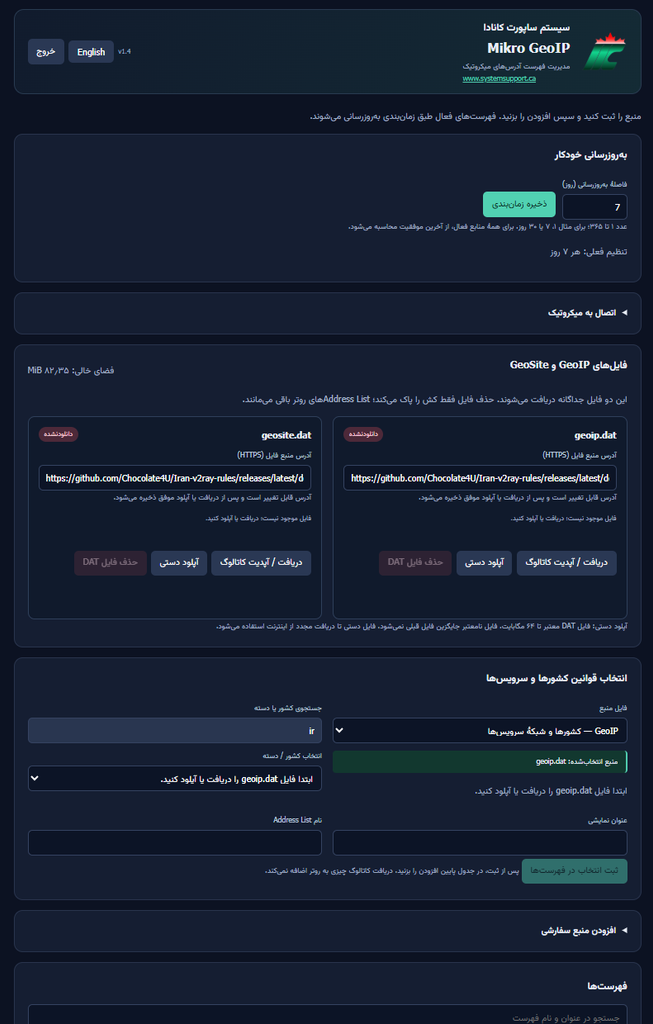
Version 1.4 separates file management from list selection. In the source-file section, the administrator can set an HTTPS source URL, download or refresh the catalogue, upload a file manually, and remove a cached DAT file. The default source points to a public Chocolate4U release. If GitHub is not reachable from the router, download geoip.dat or geosite.dat on a computer and upload each file through the panel.
A successful GeoIP download does not mean GeoSite is ready too; each file is independent. The displayed timestamp records when the router completed a download, not the upstream publication date. Uploaded files remain available until replaced or removed.
In the selection section, choose GeoIP or GeoSite, search for a country or category, enter a unique Address List name, and submit the selection. Then review the actual entries on the router before using the list in policy rules. A pre-existing list with the same name may contain records from another source, so the panel does not assume it owns unrelated entries.
For GeoSite, consider the conversion limits before relying on a list for a critical policy. A domain category may not cover every subdomain, IP address, or delivery path used by a service.
Updates, cleanup, and backups
Automatic updates run inside the container; a separate RouterOS Scheduler is not required. The container must be running, and the chosen source must remain reachable or the file must be uploaded manually. Large lists can take time and memory to process. The application batches REST work, but RouterOS still applies operations in sequence.
Deleting a DAT file removes the local cache and does not remove the Address List already on the router. Removing a managed source from RouterOS clears entries belonging to that source and stops its automatic updates. Deleting an individual entry is temporary if it is still present in the source data, because a later refresh can add it again.
Keep backups of the container’s persistent data and RouterOS configuration outside the router. Before an upgrade, attach the existing data folder to the new version and keep a rollback path until the panel and REST connection are confirmed. Do not run two copies of the application against the same data directory at the same time.
Common Mikro GeoIP troubleshooting checks
- The panel does not open: check the container status, port 8080, LAN route, and forward rules.
- A file download fails: check DNS, internet access, TLS connectivity, and available storage separately.
- The REST connection fails: verify the RouterOS URL, service settings, account permissions, and firewall access.
- The router reports low storage: inspect old container roots and cached files carefully; preserve the database and persistent data.
- Container architecture mismatch: use an image built for the router’s actual architecture.
Frequently asked questions
Does Mikro GeoIP automatically route traffic?
No. It creates and maintains Address List entries. A router administrator decides whether and how those lists are used in firewall or routing rules.
Does GeoSite include every address used by a service?
No. Conversion to RouterOS DNS rules has limits, and service traffic may use addresses or delivery methods not represented in a category.
Can I use Mikro GeoIP if the router cannot reach GitHub?
Yes. Download the required DAT file on another computer and upload it through the web panel. GeoIP and GeoSite files must be handled separately.
Where can I find the installation steps?
Use the version 1.4 technical installation guide alongside an image that matches your router architecture. For help adapting a deployment, contact System Support Canada.
Use the lists as reviewed network inputs
Mikro GeoIP makes recurring catalogue and Address List maintenance easier to manage from one interface. Its value comes from keeping data separate, reviewing what reaches the router, and applying those lists only within a deliberate network design. Confirm the architecture, storage, access controls, and backups before putting the panel into regular use.
For technical reference, see the official MikroTik documentation for containers, Device Mode, and the REST API.
